A computer that suddenly becomes slow, displays unexpected advertisements, redirects your browser, or shows suspicious security warnings may be dealing with a malware infection. These problems can affect your privacy, damage files, and expose sensitive information.
Although antivirus software helps prevent infections, sometimes threats manage to get onto a device. In that situation, a dedicated malware removal tool can help identify suspicious programs, quarantine infected files, and clean up unwanted software.
But which tool should you use?
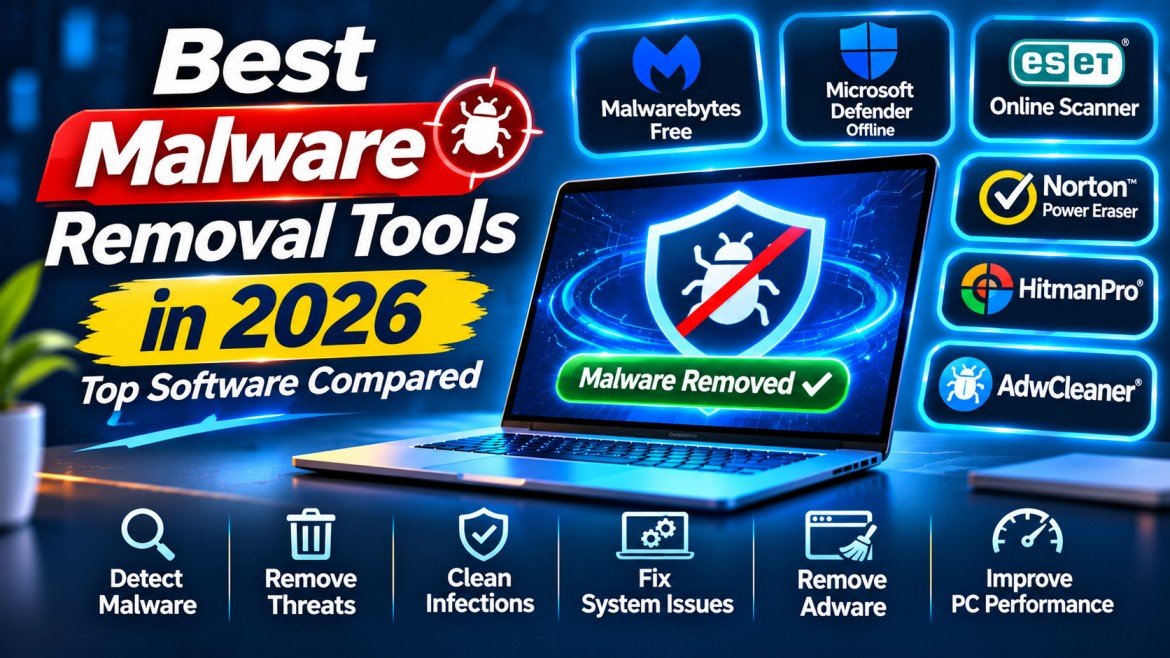
In this guide, we compare the best malware removal tools in 2026, including Malwarebytes, Microsoft Defender Offline, ESET Online Scanner, Norton Power Eraser, HitmanPro, and AdwCleaner. We will explain their features, advantages, limitations, and the situations where each tool may be useful.
Whether you use a Windows PC for work, online shopping, entertainment, or everyday browsing, this comparison will help you understand your options.
What Is a Malware Removal Tool?
A malware removal tool is a security application designed to detect and remove malicious software that may already be present on a computer.
Malware is a broad term covering different types of harmful or unwanted software, including:
- Viruses: Malicious programs that can infect files and spread between systems.
- Trojans: Programs that appear legitimate but perform harmful activities.
- Spyware: Software that secretly collects information about users.
- Ransomware: Malware that can encrypt files and demand payment.
- Adware: Software that displays unwanted advertisements.
- Browser hijackers: Programs that change browser settings or redirect searches.
- Rootkits: Tools designed to hide malicious activity deep within a system.
A malware removal tool scans the computer, identifies suspicious items, and may quarantine or delete detected threats.
However, not every scanner offers the same protection. Some provide on-demand scanning only, while others include real-time protection as part of a larger security product.
Best Malware Removal Tools in 2026: Quick Comparison
Here is an overview of popular malware removal tools and their primary purposes.
| Tool | Best For | Main Purpose |
|---|---|---|
| Malwarebytes Free | Second-opinion scanning | Detecting and removing malware |
| Microsoft Defender Offline | Persistent Windows threats | Offline malware scanning |
| ESET Online Scanner | One-time security checks | Detecting and cleaning threats |
| Norton Power Eraser | Difficult-to-remove threats | Aggressive malware scanning |
| HitmanPro | Cloud-assisted second scans | Identifying suspicious files |
| Malwarebytes AdwCleaner | Adware and browser hijackers | Removing unwanted software |
| Microsoft Safety Scanner | Manual Windows cleanup | On-demand malware scanning |
Important: These products have different purposes. Some are scanners rather than complete antivirus solutions. Free access, trial conditions, and supported features can change, so check the official product website before downloading.
1. Malwarebytes Free
Best for Second-Opinion Malware Scanning
Malwarebytes is one of the well-known names in malware detection and removal. Its free scanner is designed to identify threats that may have been missed by an existing antivirus application.
It can help detect different types of malicious and unwanted software, including spyware, adware, Trojans, and other malware.
Key Features:
- On-demand malware scanning
- Detection of suspicious applications
- Malware quarantine and removal
- Scanning of files and folders
- Additional security features in paid editions
Advantages
One of the main benefits of Malwarebytes Free is that it can be used as a second-opinion scanner.
For example, if your existing antivirus does not detect a suspicious application, you can perform an additional scan with Malwarebytes to investigate the computer.
Its free scanner is useful for checking an existing infection without immediately purchasing a subscription.
Limitations
The free version is primarily an on-demand scanner and does not provide the same continuous real-time protection as Malwarebytes Premium.
It should therefore be considered an additional scanning tool rather than a complete replacement for an active antivirus application.
Who Should Choose It?
Malwarebytes Free is suitable for users who suspect an infection and want an additional malware scan.
Official website: https://www.malwarebytes.com/
2. Microsoft Defender Offline
Best for Persistent Malware on Windows
Sometimes malware becomes difficult to remove because it is actively running while Windows is operating.
Microsoft Defender Offline addresses this situation by scanning the computer outside the normal Windows environment.
This can help detect certain persistent threats that may hide or interfere with security software during a regular scan.
Key Features:
- Offline malware scanning
- Detection of persistent threats
- Integration with Windows Security
- Security scanning before normal Windows operation
- No separate paid subscription required for the built-in feature
Advantages
Microsoft Defender Offline is already part of Windows Security on supported Windows systems.
It can be particularly useful when a regular antivirus scan repeatedly detects the same threat or when malware appears to return after restarting the computer.
Because the scan runs outside the normal Windows environment, it can help identify certain threats that are harder to investigate during regular operation.
Limitations
Microsoft Defender Offline is designed for Windows devices. It is not a general-purpose malware removal solution for every operating system.
The scan may also require the computer to restart, so save your work before starting it.
Who Should Choose It?
Windows users dealing with persistent malware or repeated threat detections should consider Microsoft Defender Offline.
Official information: https://support.microsoft.com/
3. ESET Online Scanner
Best for One-Time Malware Checks
ESET Online Scanner is designed for users who want to perform an additional malware scan without committing to a full security subscription.
It can check a Windows computer for suspicious files and threats, providing another way to investigate potential infections.
Key Features:
- On-demand malware scanning
- Detection of suspicious files
- Threat removal options
- Additional security checks
- No need to replace your existing antivirus simply to perform a scan
Advantages
ESET Online Scanner can be useful when you want to check your computer with a different security engine.
It is especially helpful for users who suspect an infection but do not want to install a permanent second antivirus application.
Limitations
An online scanner is not the same as continuous real-time protection. It does not replace an active antivirus solution that monitors new downloads and activity.
Its supported operating systems and current scanning options should be checked before installation.
Who Should Choose It?
ESET Online Scanner is worth considering for occasional security checks and second-opinion scanning on Windows computers.
Official website: https://www.eset.com/
4. Norton Power Eraser
Best for Difficult-to-Remove Threats
Norton Power Eraser is a specialized scanning utility designed to identify and remove certain difficult-to-detect threats.
It uses aggressive detection methods to investigate suspicious applications and system behavior.
Key Features:
- Aggressive malware scanning
- Detection of suspicious applications
- Removal options for identified threats
- Additional scanning for difficult infections
- Support from Norton’s security ecosystem
Advantages
Norton Power Eraser can be useful when conventional antivirus scans fail to resolve a suspected infection.
It is designed for situations where a deeper investigation may be necessary.
Limitations
Aggressive scanning can sometimes identify legitimate programs incorrectly.
Users should carefully review scan results before removing anything. Deleting a legitimate file or application could affect normal computer operation.
It is also important to understand that Norton Power Eraser is a specialized removal utility, not a replacement for continuous antivirus protection.
Who Should Choose It?
Advanced users or people dealing with persistent suspicious software may find Norton Power Eraser useful.
Official website: https://support.norton.com/
5. HitmanPro
Best for Cloud-Assisted Second Scanning
HitmanPro is a malware scanning tool from Sophos that uses cloud-assisted analysis to help identify suspicious files.
It is designed as a second-opinion scanner and can be useful when a computer appears infected despite having an existing antivirus application.
Key Features:
- Cloud-assisted malware detection
- Second-opinion scanning
- Detection of suspicious files
- Portable scanning workflow
- Removal options subject to current license and trial conditions
Advantages
HitmanPro is useful for users who want an additional security opinion without replacing their existing antivirus application.
Its cloud-assisted approach can help investigate files that may be difficult to classify through a basic local scan.
Limitations
HitmanPro is not a permanently free, full-time antivirus solution. Free scanning or cleanup availability may depend on the current trial and licensing terms.
It is also not intended to provide continuous real-time protection as a standalone free scanner.
Who Should Choose It?
HitmanPro may be useful for technicians and users who want an additional scan when investigating a suspicious Windows computer.
Official website: https://www.hitmanpro.com/
6. Malwarebytes AdwCleaner
Best for Removing Adware and Browser Hijackers
Not every unwanted program behaves like a traditional computer virus.
Some applications display excessive advertisements, change browser settings, install unwanted extensions, or redirect search activity.
Malwarebytes AdwCleaner is designed specifically to help detect and remove adware and potentially unwanted programs.
Key Features:
- Adware detection and removal
- Browser hijacker cleanup
- Potentially unwanted program detection
- Toolbar and unwanted software removal
- Portable scanning utility
Advantages
AdwCleaner focuses on a problem that traditional antivirus scans may not always address in the way users expect: unwanted applications and browser-related advertising software.
It is particularly useful when a browser suddenly starts displaying pop-ups or using an unfamiliar search engine.
Limitations
AdwCleaner is not a complete antivirus program. It does not replace real-time malware protection or provide the same range of features as a full security suite.
It is also primarily intended for Windows computers.
Who Should Choose It?
AdwCleaner is a practical option for Windows users dealing with unwanted advertisements, browser redirects, toolbars, and potentially unwanted programs.
Official website: https://www.malwarebytes.com/adwcleaner
7. Microsoft Safety Scanner
Best for Manual Windows Malware Scanning
Microsoft Safety Scanner is a downloadable security tool designed to scan Windows computers and help remove detected malware.
It can be useful when you want to perform a manual security check without installing another permanent antivirus application.
Key Features:
- On-demand malware scanning
- Detection and removal of certain threats
- Manual scanning options
- Compatibility with supported Windows versions
- Free download from Microsoft
Advantages
Microsoft Safety Scanner is useful for users who prefer a standalone Microsoft scanning utility.
It can provide another way to investigate suspicious activity on a Windows computer.
Limitations
Microsoft Safety Scanner is not a replacement for Microsoft Defender Antivirus or continuous real-time security protection.
The downloaded scanner expires after 10 days, so users need to download the latest version when they want to run a new scan.
Who Should Choose It?
Users who want a manual malware check with a Microsoft tool can consider Safety Scanner.
Official website: https://learn.microsoft.com/en-us/defender-endpoint/safety-scanner-download
Malware Removal Tool vs Antivirus Software: What Is the Difference?
Although antivirus software and malware removal tools are related, they do not always perform the same job.
Antivirus software is generally designed to prevent infections by monitoring files, applications, downloads, and other system activity.
Malware removal tools are often used after a suspicious file or infection has already been detected.
| Feature | Antivirus Software | Malware Removal Tool |
|---|---|---|
| Main purpose | Prevent and detect threats | Find and remove existing threats |
| Real-time monitoring | Usually included | Depends on the product |
| Manual scanning | Usually included | Usually included |
| Malware cleanup | Usually included | Main purpose |
| Continuous protection | Common | Not always available |
| Second-opinion scanning | Not its main purpose | Common use case |
Some products combine both functions, while others are designed for one-time scanning and cleanup.
For example, Malwarebytes Free focuses on on-demand scanning, while Microsoft Defender provides ongoing antivirus protection and also offers an offline scanning option.
How to Choose the Best Malware Removal Tool
Choosing the right malware removal tool depends on the type of problem you are experiencing.
Here are some important factors to consider before downloading a security application.
1. Identify the Type of Infection
First, understand what is happening on your computer.
If you are seeing unwanted advertisements, AdwCleaner may be worth considering. If your computer repeatedly detects the same malware, Microsoft Defender Offline may help investigate persistent threats.
Choosing a tool based on the actual problem is more useful than installing several applications without a clear reason.
2. Check Operating System Compatibility
Not every malware removal tool supports every operating system.
Some utilities are designed specifically for Windows, while other security products offer versions for macOS or mobile devices.
Check the official system requirements before downloading anything.
3. Look for Quarantine and Recovery Options
A good security tool should explain what happens when it detects a suspicious file.
Quarantine is generally safer than immediately deleting an unfamiliar file because it isolates the item while allowing the user to review the detection.
Avoid manually deleting important system files unless you understand what they do.
4. Review Independent Testing
Independent security testing can provide useful information about malware detection and protection capabilities.
Organizations such as AV-TEST and AV-Comparatives evaluate security products using different testing methods.
However, remember that a test result for a complete antivirus product does not automatically represent the performance of its separate removal utility.
5. Understand Free and Paid Features
Some tools are completely free for particular scanning functions, while others provide limited trials or require a license for cleanup and continued use.
Always review the current licensing terms before relying on a free feature.
How to Remove Malware From a Windows PC Safely
If you suspect that your computer is infected, follow a careful cleanup process rather than installing multiple security programs immediately.
Step 1: Disconnect From Suspicious Network Activity
If you suspect that malware is actively communicating with an unknown server or your accounts are being compromised, disconnect the computer from the internet.
Do not enter banking details or passwords on a potentially infected device.
Step 2: Update Your Existing Security Software
Make sure your existing antivirus software has the latest security intelligence updates.
Microsoft recommends keeping Microsoft Defender updated and using cloud-delivered protection where available.
Step 3: Run a Full Antivirus Scan
Open your antivirus application and perform a full system scan.
Review the results and follow the recommended quarantine or removal process.
Step 4: Use a Second-Opinion Scanner
If the problem continues, consider a reputable second-opinion scanner such as Malwarebytes Free or ESET Online Scanner.
Avoid running multiple real-time antivirus products simultaneously unless the vendors explicitly support that setup.
Step 5: Use an Offline Scan if Necessary
If the same threat keeps returning, consider Microsoft Defender Offline.
This allows Windows to scan the system outside its normal operating environment.
Step 6: Restart and Check Again
After the cleanup process, restart the computer if requested.
Run another scan to check whether the detected threats have been removed.
Step 7: Secure Your Important Accounts
If you believe passwords or personal information may have been exposed, use a separate trusted device to change important passwords.
Enable multi-factor authentication and review recent account activity.
Step 8: Back Up Important Files
Maintain a separate backup of important documents, photos, and work files.
If ransomware or serious system damage is involved, avoid overwriting existing backups with potentially infected files.
Signs That Your Computer May Have Malware
Malware does not always display an obvious warning. Sometimes the first signs are changes in everyday computer behavior.
Watch for these possible symptoms:
- Unexpected pop-ups: Advertisements appear even when you are not visiting advertising-heavy websites.
- Browser redirects: Your searches open unfamiliar websites.
- Unusual system slowdown: Your computer becomes noticeably slower without an obvious reason.
- Unknown applications: Programs appear that you do not remember installing.
- Changed browser settings: Your homepage or default search engine changes unexpectedly.
- Security alerts: Your antivirus repeatedly reports suspicious files.
- Unusual account activity: You notice unexpected sign-ins or password reset messages.
These symptoms do not always mean your computer has malware. Software conflicts, browser extensions, and hardware issues can cause similar problems.
A reputable security scan can help investigate the cause.
Common Mistakes to Avoid During Malware Removal
Removing malware requires care. Some cleanup mistakes can create additional problems.
Installing Multiple Antivirus Programs
Installing several full antivirus applications may create conflicts and affect system performance.
Use one primary real-time antivirus solution and select compatible on-demand scanners when additional checks are needed.
Downloading Tools From Unofficial Websites
Fake antivirus downloads can contain malware themselves.
Always download security software directly from its official provider.
Deleting Every Suspicious File
A security scan may occasionally identify legitimate software as suspicious.
Review detections and use quarantine when available instead of manually deleting unfamiliar system files.
Ignoring Browser Extensions
Some unwanted programs operate through browser extensions rather than traditional applications.
Review installed extensions and remove those you do not recognize or trust.
Forgetting to Change Exposed Passwords
Removing malware does not automatically secure accounts whose credentials may have been stolen.
Change important passwords from a trusted device and enable multi-factor authentication.
Frequently Asked Questions
1. What is the best malware removal tool in 2026?
The best option depends on the infection. Malwarebytes Free is useful for second-opinion scanning, Microsoft Defender Offline can help investigate persistent Windows threats, and AdwCleaner is designed for adware and unwanted browser software.
2. Is Malwarebytes Free enough to remove malware?
Malwarebytes Free can scan for and remove detected threats, but its free version is primarily an on-demand scanner. It does not provide the same continuous real-time protection as Malwarebytes Premium.
3. Can Microsoft Defender remove malware?
Yes. Microsoft Defender Antivirus can detect and remove many types of malware. Microsoft Defender Offline can also help investigate certain persistent threats that are difficult to remove during normal Windows operation.
4. Is AdwCleaner an antivirus program?
No. AdwCleaner is a specialized utility designed to detect and remove adware, browser hijackers, potentially unwanted programs, and related unwanted software. It is not a replacement for a complete antivirus application.
5. Can I use Malwarebytes with Microsoft Defender?
Malwarebytes Free can be used as an on-demand second-opinion scanner alongside Microsoft Defender. Avoid enabling overlapping real-time antivirus protection in multiple products unless the providers explicitly support the configuration.
6. Are free malware removal tools safe?
Free tools from reputable providers can be safe when downloaded from official websites. Check the developer, system requirements, privacy policy, and licensing terms before installation.
7. How often should I scan my computer for malware?
Keep your primary antivirus protection enabled and updated. Run additional manual scans when you notice suspicious activity, download questionable files, or receive a security warning. Regular scans should complement everyday safe browsing habits.
8. Can malware return after removal?
Yes. Malware may return if the original infection source remains, an infected backup is restored, or a compromised account continues to be used. Keep software updated, secure exposed accounts, and avoid suspicious downloads.
Final Verdict: Which Malware Removal Tool Should You Choose?
The best malware removal tool depends on the type of infection and the level of cleanup you need.
- Malwarebytes Free: A useful second-opinion scanner for existing malware.
- Microsoft Defender Offline: A good option for persistent threats on Windows.
- ESET Online Scanner: Suitable for additional on-demand malware checks.
- Norton Power Eraser: Worth considering for difficult-to-remove suspicious software.
- HitmanPro: An option for cloud-assisted second-opinion scanning.
- AdwCleaner: Specialized for adware, browser hijackers, and unwanted programs.
- Microsoft Safety Scanner: A useful standalone Microsoft scanning utility.
For everyday Windows users, a sensible approach is to keep Microsoft Defender or another reputable antivirus active and use a specialized removal tool when an infection is suspected.
Remember that no single security tool can guarantee complete protection. Regular updates, safe downloads, strong passwords, multi-factor authentication, and reliable backups are all essential parts of maintaining a secure computer.
Choose the right malware removal tool, understand its limitations, and take proactive steps to protect your digital information.
for more info: click here